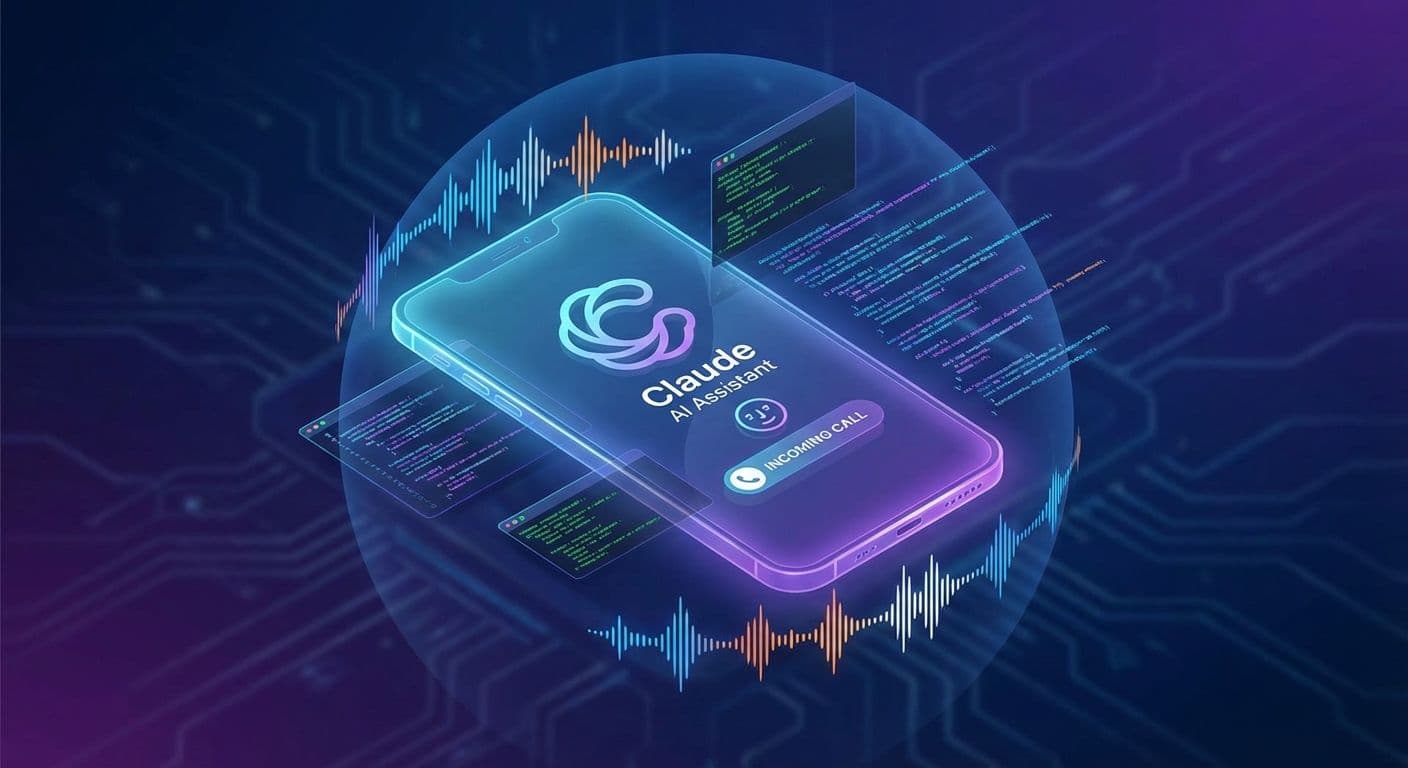

Imagine this: you kick off a long-running task in your terminal and step away to grab coffee. A few minutes later, your phone rings — it's Claude, telling you the task is complete and asking what to do next. Science fiction? Nope. It's real, thanks to the CallMe plugin for Claude Code.
In this article, I'll walk you through setting up voice communication with your AI assistant via regular phone calls.
What is CallMe?
CallMe is an MCP (Model Context Protocol) plugin for Claude Code that enables Claude to initiate phone calls to you. This unlocks entirely new use cases:
- Task completion notifications — no need to watch the terminal
- Voice discussions about code — sometimes explaining verbally is just easier
- Async workflows — start a task, walk away, get a call with results
- Accessibility — interact with AI without needing a screen
- Clarifying questions — Claude can call you when it needs more context or has questions about your request
Architecture Overview
Tech Stack
The system consists of five main components working together:
- Claude Code — Anthropic's CLI tool with MCP plugin support
- CallMe Server — Local Node.js server managing calls
- Twilio — Cloud telephony platform (Telnyx is also supported)
- ngrok — Tunneling service to expose your local server to the internet
- OpenAI API — Text-to-speech (TTS) and speech-to-text (STT) conversion
How It Works
- Claude invokes the initiate_call MCP tool with a text message
- CallMe Server converts text to speech via OpenAI TTS
- Server initiates a call through Twilio API
- Twilio calls your phone and establishes a WebSocket for audio streaming
- You hear Claude's message and respond with your voice
- Your voice is transcribed via OpenAI STT (gpt-4o-transcribe model)
- The transcript returns to Claude, who can continue the conversation
Step-by-Step Setup
Step 1: Register with Twilio
- Sign up at twilio.com
- Complete KYC verification (required for voice calls)
- Purchase a phone number with Voice capability — I recommend choosing a number in your region to minimize call costs
- Get your credentials: Account SID and Auth Token from Twilio Console
Step 2: Get OpenAI API Key
- Go to platform.openai.com
- Create an API key in the API Keys section
- Make sure you have credits (TTS and STT are paid services)
Step 3: Set Up ngrok
- Register at ngrok.com
- Get your authtoken from the dashboard
- ngrok is needed so Twilio can send webhooks to your local server
Step 4: Install the Plugin
Add the plugin from the marketplace and install it:
1/plugin marketplace add ZeframLou/call-me
2/plugin install callme@callme
Step 5: Configuration
Add environment variables to ~/.claude/settings.json:
1{
2  "env": {
3    "CALLME_PHONE_PROVIDER": "twilio",
4    "CALLME_PHONE_ACCOUNT_SID": "ACxxxxxxxxxxxxxxxxxxxxxxxxxxxxxxxxxx",
5    "CALLME_PHONE_AUTH_TOKEN": "your_auth_token",
6    "CALLME_PHONE_NUMBER": "+441234567890",
7    "CALLME_USER_PHONE_NUMBER": "+19001234567",
8    "CALLME_OPENAI_API_KEY": "sk-proj-...",
9    "CALLME_NGROK_AUTHTOKEN": "your_ngrok_authtoken"
10  },
11  "enabledPlugins": {
12    "callme@callme": true
13  }
14}
Configuration Variables
- CALLME_PHONE_PROVIDER — Telephony provider: twilio or telnyx
- CALLME_PHONE_ACCOUNT_SID — Account SID from Twilio Console
- CALLME_PHONE_AUTH_TOKEN — Auth Token from Twilio Console
- CALLME_PHONE_NUMBER — Your purchased Twilio number (caller ID)
- CALLME_USER_PHONE_NUMBER — Your personal number (where to call)
- CALLME_OPENAI_API_KEY — OpenAI API key for TTS/STT
- CALLME_NGROK_AUTHTOKEN — Authtoken for ngrok tunnel
Step 6: Restart Claude Code
After configuration, restart Claude Code so the plugin picks up the new settings.
Usage
Available MCP Tools
The plugin provides three tools:
1. initiate_call — Start a call with a message parameter (text that Claude will speak at the start)
2. continue_call — Continue the conversation with call_id and message parameters
3. end_call — End the call with call_id and a farewell message
Usage Examples
Simple notification:
1User: Run the tests and call me when done
2
3Claude: [runs tests, waits for completion]
4Claude: [uses initiate_call]
5        "Tests completed. All 47 tests passed successfully.
6         Execution time was 2 minutes and 34 seconds."
Interactive dialogue:
1Claude: [initiate_call] "I found three possible solutions to the problem.
2         Want me to describe each one?"
3
4User (voice): "Yes, tell me about the first one"
5
6Claude: [continue_call] "The first option is to use caching..."
7
8User (voice): "Which one do you recommend?"
9
10Claude: [continue_call] "I'd recommend the second option because..."
11
12User (voice): "Okay, go with the second one"
13
14Claude: [end_call] "Got it! Starting implementation now. Bye!"
Claude calling with questions:
1User: Refactor this module and if you have any questions, call me
2
3Claude: [analyzes code, finds ambiguity]
4Claude: [uses initiate_call]
5        "I have a question about the authentication flow.
6         Should I keep the legacy token validation or migrate
7         everything to JWT?"
Technical Deep Dive
WebSocket Media Streams
Twilio uses WebSocket for bidirectional audio streaming. Audio is transmitted in mulaw 8000Hz format, base64-encoded. The inbound track carries the user's voice (sent to STT), while the outbound track carries Claude's voice (generated by TTS).
TwiML — Call Control Language
Twilio uses the XML-based TwiML language for call control, establishing WebSocket connections with parameters for call management.
Security
The plugin implements multiple security layers:
- Twilio Signature Validation — verifies webhook authenticity from Twilio
- WebSocket Token — one-time token for WebSocket connection authorization
- ngrok Free Tier Detection — automatically bypasses signature validation for free ngrok (due to how ngrok handles headers)
Cost Breakdown
Twilio
- Outbound call: ~$0.013-0.02/min (varies by country)
- Phone number: ~$1-2/month
OpenAI
- TTS (tts-1): $0.015 / 1K characters
- STT (whisper): $0.006 / minute
Approximate cost per 1-minute call: $0.02-0.05
Troubleshooting
Common issues and solutions:
- "Application error" on call — Server not running or ngrok down. Check processes, restart Claude Code.
- Call connects but silence — WebSocket didn't connect. Verify ngrok authtoken.
- 401 on webhook — Invalid Twilio signature. Update plugin to version with ngrok compatibility.
- Mobile internet drops during calls — Hotspot may disconnect when receiving calls. Use stable WiFi connection.
Limitations
- Requires stable internet — mobile hotspots may disconnect during incoming calls
- Latency — slight delay due to the TTS → Twilio → STT pipeline
- STT accuracy — transcription can be imperfect, especially for non-English languages
- ngrok sessions — free tier limited to one session
The Debugging Journey
Setting this up wasn't entirely smooth. Here are some issues I encountered:
ngrok Session Conflicts — Multiple ngrok sessions can conflict. Solution: pkill -9 -f ngrok and wait for sessions to expire.
Port Conflicts — Port 3333 sometimes stays occupied. Solution: lsof -ti:3333 | xargs kill -9
Twilio Signature Validation — The original code reconstructed webhook URLs from headers, but ngrok uses different headers. The latest version of the plugin detects ngrok free tier and handles this automatically.
WebSocket Race Conditions — The call state wasn't always ready when the WebSocket connected. Fixed in the latest plugin version with fallback logic.
Conclusion
CallMe transforms Claude Code from a text-based tool into a voice assistant that can call you anytime. This is especially useful for:
- Long-running tasks where you don't want to watch the terminal
- Situations when you're away from your computer
- Quick voice discussions about complex topics
- When Claude needs clarification — instead of waiting for you to check the terminal, Claude can just call and ask
Setup takes about 30 minutes, and usage costs are minimal. Give it a try — it genuinely changes how you work with AI assistants.
Links
- CallMe GitHub Repository: https://github.com/ZeframLou/call-me
- Claude Code Documentation: https://docs.anthropic.com/claude-code
- Twilio Programmable Voice: https://www.twilio.com/docs/voice
- OpenAI TTS API: https://platform.openai.com/docs/guides/text-to-speech
- ngrok Documentation: https://ngrok.com/docs